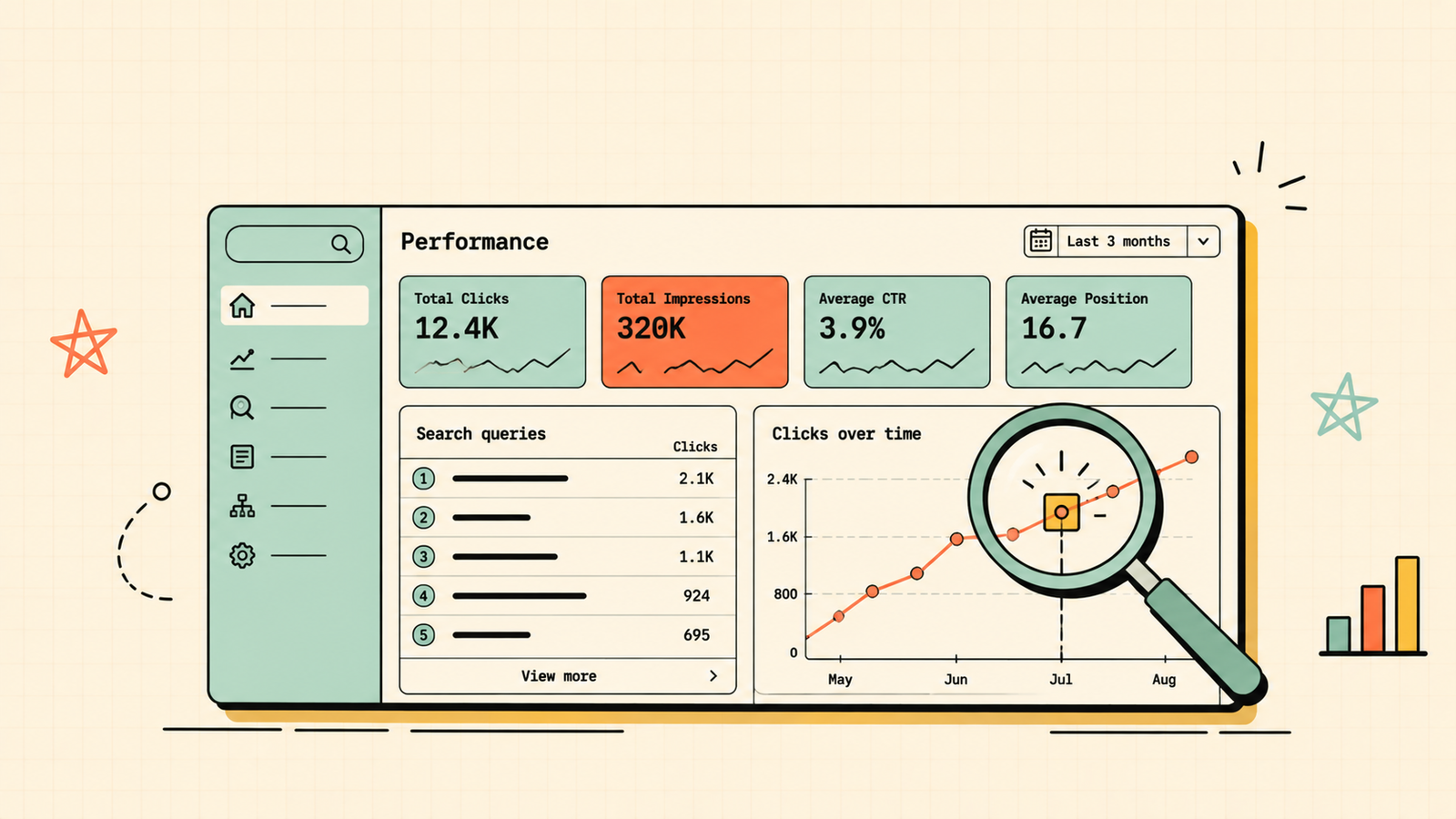
There is a free tool that tells you exactly which searches bring people to your site, which pages Google has indexed, which ones it has not, and what technical problems are quietly killing your rankings. Most site owners either ignore it or check it once and never come back. That tool is Google Search Console, and it is the single most useful free SEO tool that exists. This guide covers what it is, how to set it up, and how to use every section that matters so you can find problems faster, spot opportunities you are missing, and actually understand how Google sees your site.
What is Google Search Console?
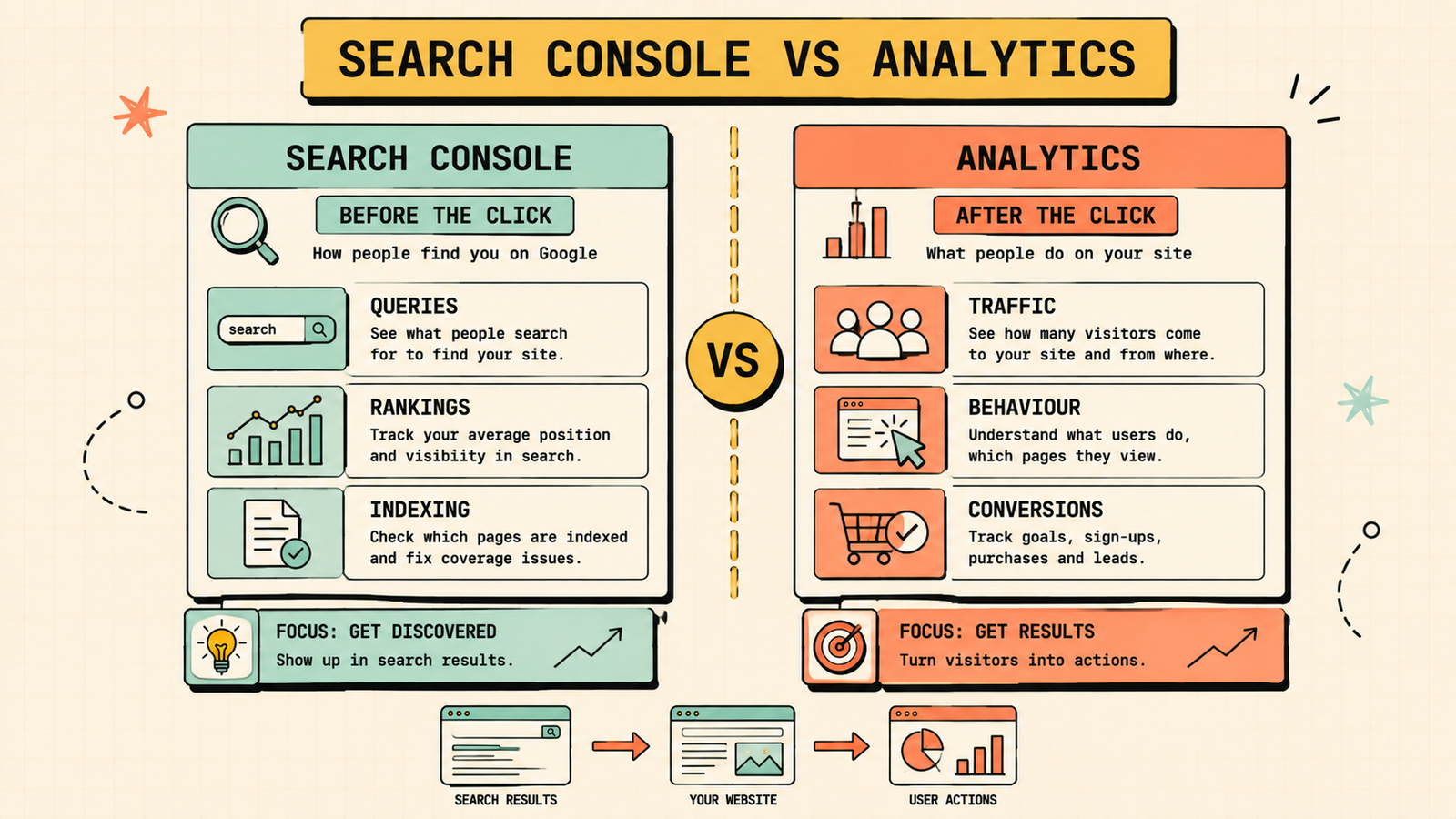
Google Search Console (GSC) is a free tool from Google that shows you how your website performs in Google search. It tells you which queries people use to find your site, which pages appear in search results, how many clicks and impressions you get, which pages are indexed and which are not, and what technical issues Google has found. Unlike analytics tools that track what visitors do after they arrive, Search Console shows you what happens before the click: how you appear in search and what is holding you back. Every website that cares about search traffic should have it set up.
How to Rank on Google
How to set up Google Search Console
Setting it up takes about five minutes.
Go to search.google.com/search-console and sign in with your Google account. Click "Add property" and enter your website URL. Choose the domain or URL prefix method (URL prefix is simpler for beginners). Verify ownership by adding a small piece of code to your site, uploading a file, or connecting through your domain registrar. Once verified, Google starts collecting data. Submit your XML sitemap by going to Sitemaps in the left menu and entering your sitemap URL (usually yourdomain.com/sitemap.xml). Give it a day or two to start showing data.
The sections that matter most
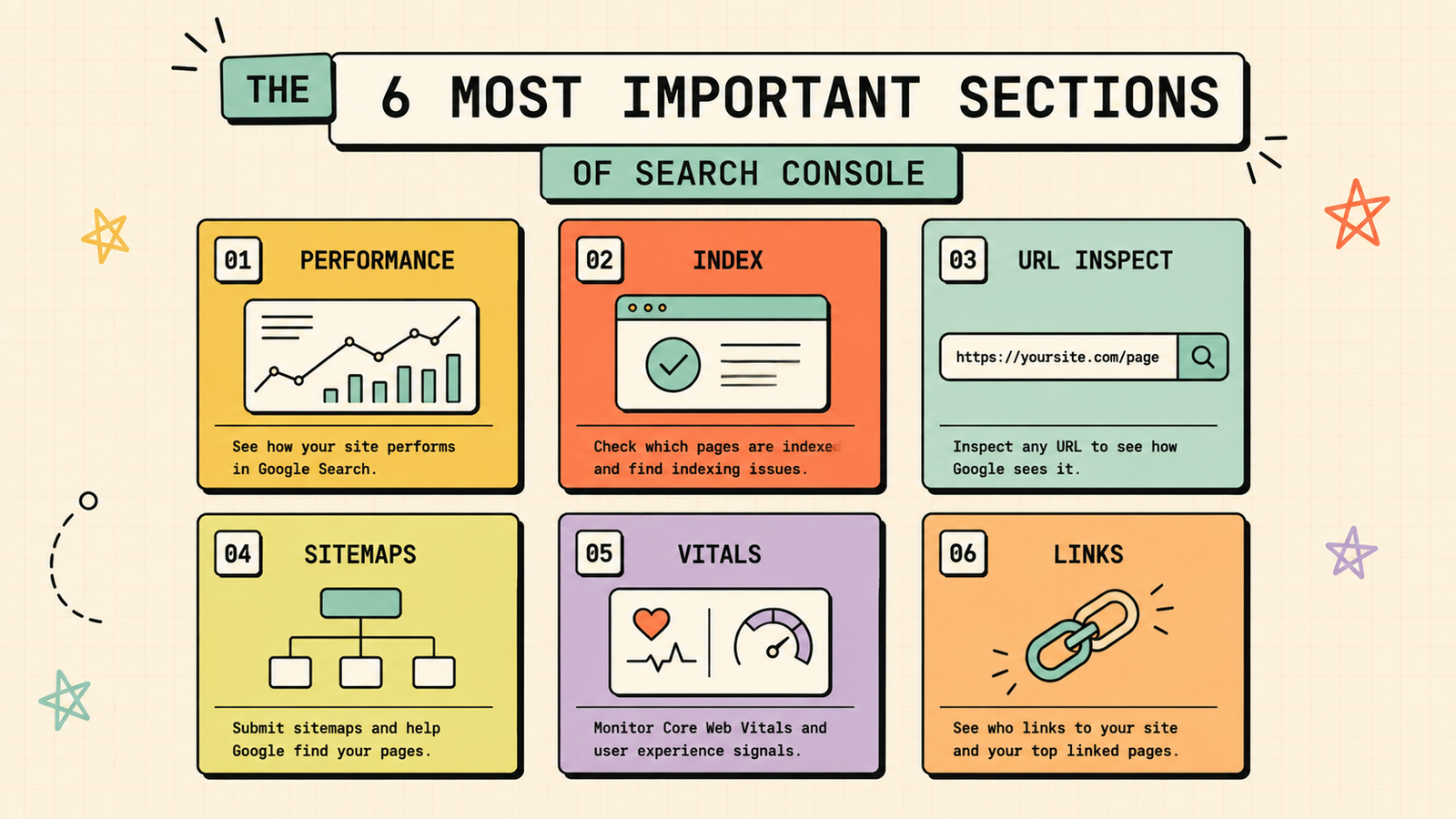
Search Console has many reports, but a few deliver nearly all the value. Here is what to check and what to do with what you find.
Performance report
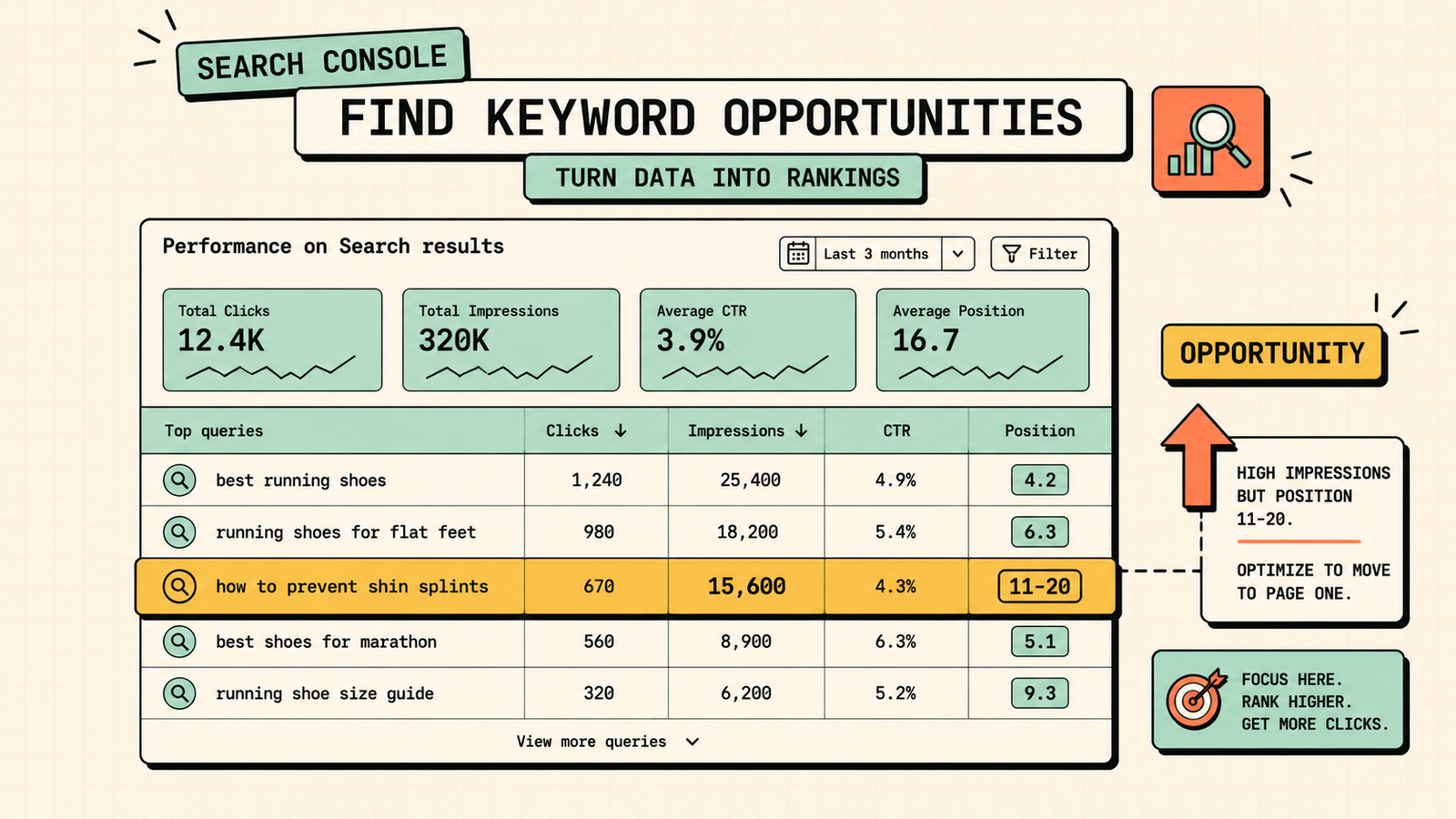
This is the most useful section. It shows you every query that triggered your site in search results, how many impressions and clicks you got, your average position, and your click-through rate. Use it to find your best-performing keywords and pages, spot keywords where you rank on page two (positions 11 to 20) that you could push to page one with improvements, discover new queries you are ranking for that you did not know about, and identify pages with high impressions but low clicks, which means your title or description needs improving.
Index coverage (Pages report)
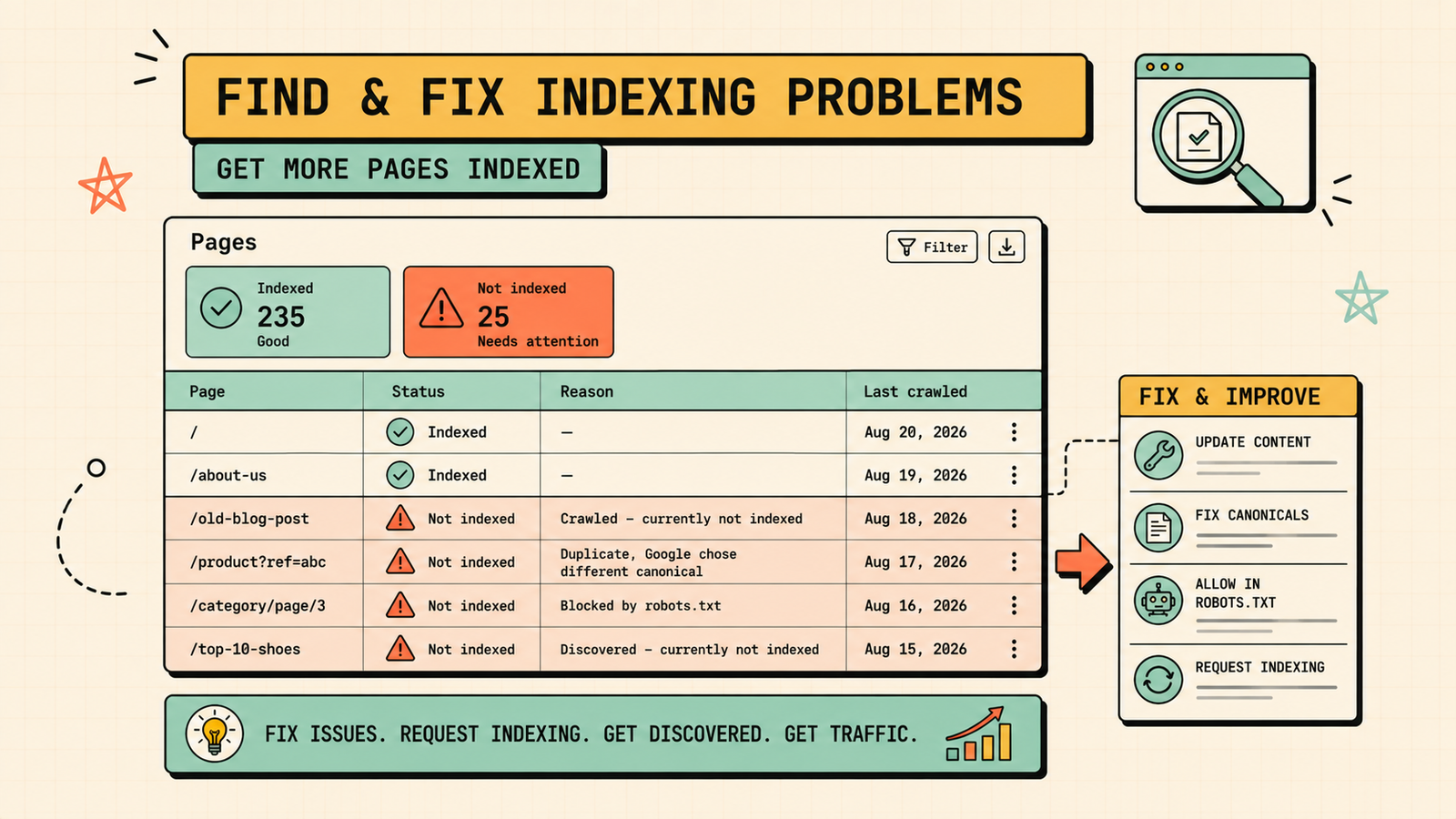
This shows which pages Google has indexed and which it has not, with reasons for exclusion. Check this regularly to make sure your important pages are indexed. Common issues include pages blocked by robots.txt, pages with a noindex tag, redirect errors, and soft 404s. Fixing these often unlocks traffic immediately because you are making hidden pages visible to search.
URL Inspection tool
Use this to check any specific page. It tells you whether Google has indexed it, when it was last crawled, and whether there are any issues. If a new or updated page is not showing up in search, use the "Request Indexing" button to ask Google to crawl it sooner.
Sitemaps
This shows the status of your submitted sitemaps and whether Google found errors in them. Make sure your sitemap is submitted, shows a "Success" status, and includes your important pages.
Core Web Vitals
This report shows how your pages perform on loading speed, interactivity, and visual stability, the metrics Google uses as ranking signals. It flags pages that need improvement and separates them into mobile and desktop. Fix the pages flagged as "Poor" first, since those are actively hurting your rankings.
Links report
This shows your external backlinks (which sites link to you), internal links (how your own pages link together), and top linked pages. Use it to see which pages have earned the most backlinks, find opportunities to improve internal linking, and check whether important pages are well-linked within your own site.
How to use Search Console for keyword research
Search Console is an underrated keyword research tool because it shows you real queries people use to find your site, not estimates from a third-party tool. Go to the Performance report, filter by queries, and sort by impressions. Look for queries where you get impressions but rank below position 10, because these are keywords Google already associates with your site but where you are not yet visible enough to get clicks. Improving the page that ranks for those queries, or creating a dedicated page if one does not exist, is often the fastest path to new traffic because Google already sees you as relevant.
Digital Marketing Strategy Guide
How to find and fix indexing problems
Indexing issues are the most common silent traffic killer, and Search Console is the only way to find them for free. Go to the Pages report and look at the "Not indexed" tab. Review the reasons: pages excluded by noindex, blocked by robots.txt, crawl anomalies, or soft 404s. For each, decide whether the page should be indexed (fix the block) or whether the exclusion is intentional (leave it). Then check your important pages individually using the URL Inspection tool to confirm they are indexed. Fixing indexing problems is often the single fastest SEO win because you are literally unhiding pages that were ready to rank.
How to improve click-through rate with Search Console
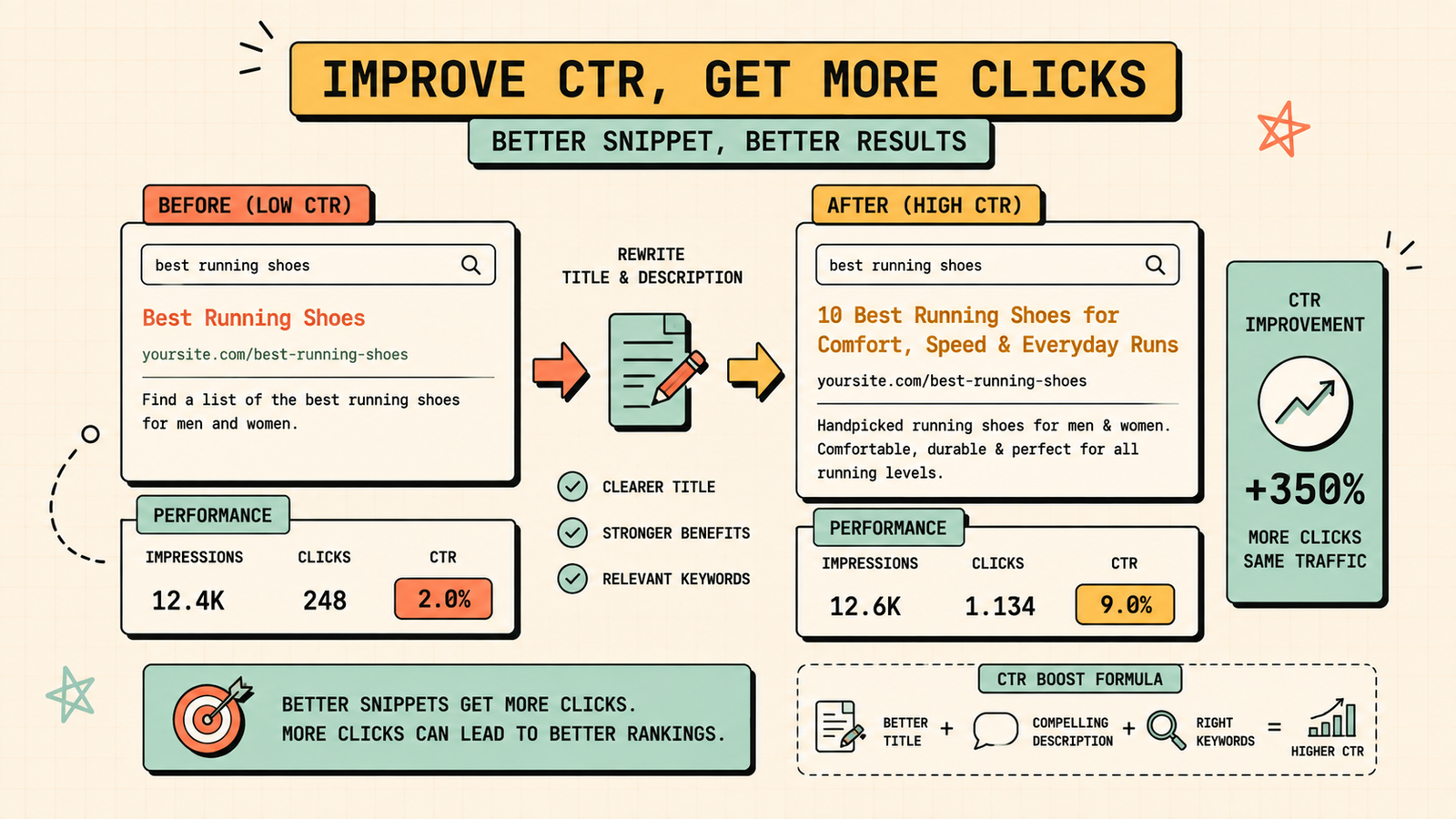
A page can rank well and still get few clicks if its title and description are not compelling. In the Performance report, filter by pages, and look for pages with high impressions but a low click-through rate. Those pages are appearing in search but not getting clicked, which usually means the title tag does not match the search well, the meta description is missing or unhelpful, or a competitor's listing is more appealing. Rewrite the title and description to be clearer, more specific, and more compelling, then monitor the CTR change over the following weeks.
How often to check Search Console
Check it at least monthly for a quick health review: are your pages indexed, is traffic trending up or down, are there new errors? Check weekly if you are actively working on SEO, since new data on keywords and positions helps you prioritise. And always check immediately after a major site change (redesign, migration, new pages) or a Google algorithm update, since those are the moments issues most often appear. Setting up email alerts in Search Console means Google will notify you of critical issues without you having to remember to log in.
We'll analyse your Search Console data and show you exactly what is holding your traffic back.
Get a clear, data-backed plan to fix indexing issues, improve CTR, and find the fastest path to more search traffic.
Google Search Console vs Google Analytics
These two tools complement each other but do different jobs. Search Console shows you how Google sees your site and what happens before the click: queries, impressions, rankings, indexing, and technical issues. Google Analytics shows you what happens after the click: traffic, visitor behaviour, conversions, and engagement. You need both. Search Console tells you how to get more visitors from search. Analytics tells you what those visitors do once they arrive. Together they give you the complete picture.
AI Tools for Marketing
Advanced Google Search Console tips
Once you are comfortable with the basics, a few deeper habits unlock more value. Use the date comparison feature in the Performance report to spot trends: compare this month to last month, or this quarter to last quarter, and look for queries and pages gaining or losing impressions and clicks. Filter by country or device to understand where your audience is and how mobile versus desktop behaviour differs. Use the "Discover" performance data (if available) to see whether your content is appearing in Google Discover, which is a growing traffic source many sites overlook. Export your query data into a spreadsheet periodically and build a running keyword tracker, so you can see position trends over time rather than just snapshots. And check the "Manual actions" section occasionally to confirm Google has not penalised your site for any policy violation. These habits take minutes per session and give you insight that most competitors never access because they never look past the surface.
Common Google Search Console mistakes
A few errors make the tool less useful than it should be. Not setting it up at all is the biggest, since you are flying blind without it. Setting it up but never checking it means issues pile up silently. Looking only at clicks and ignoring impressions means you miss the keywords where you are close to ranking but not quite visible. Not submitting your sitemap means Google may miss important pages. Ignoring the Core Web Vitals report means speed problems drag your rankings without you knowing. And treating Search Console data as absolute truth rather than directional guidance leads to over-optimising for small fluctuations. Use it regularly, act on the clear signals, and treat it as your direct line to how Google sees your site.
Using Search Console to find content ideas
Beyond keywords you already rank for, Search Console reveals content you should create but have not. Look at the queries report for searches where your site appears but you have no dedicated page. These are topics Google already associates with your domain, which means a well-targeted page has a head start on ranking. For example, if you sell running shoes and Search Console shows impressions for "best shoes for flat feet" but you have no page on that topic, creating one is a near-guaranteed traffic win because Google is already showing your site for it. Run this check quarterly and you build a content pipeline driven by real demand rather than guesswork.
LetMeRank
The bottom line
Google Search Console is the most valuable free SEO tool you have, and learning to use it is one of the highest-return skills a founder or marketer can build. Set it up, submit your sitemap, check the Performance report for keyword opportunities and CTR wins, fix indexing issues in the Pages report, monitor Core Web Vitals, and review regularly. It takes minutes per check and shows you exactly what Google sees, what is working, and what is quietly holding you back.
If you want experts to interpret your Search Console data and turn it into a ranking plan, LetMeRank uses GSC as part of every SEO engagement, starting with a free audit.