You need a product shot with a clean background, a headshot that looks professional, or a quick fix that would normally take twenty minutes in Photoshop, and you do not have the skill, the software, or the patience. AI photo editing tools have made things that used to require a trained designer into things anyone can do in seconds: removing backgrounds, erasing objects, enhancing quality, swapping skies, and making photos look polished without learning a single keyboard shortcut. This guide covers which AI is best for photo editing, what each tool handles well, which are free, and how to pick the right one for what you actually need to do.
What to look for in an AI photo editor
Before choosing, match the tool to the edit. Do you need background removal? Object erasure? General enhancement? Full creative editing? Some tools specialise in one task and do it brilliantly, while others try to do everything and do nothing well. Check the output quality, since a tool that leaves rough edges or obvious artefacts creates more work than it saves. See whether it works on your device, as some are mobile apps, some are browser-based, and some require desktop software. Check whether there is a free plan that produces downloadable, unwatermarked images. And if you need batch editing for many photos, see whether the tool supports it.
Which AI Is Best for Logo Design?
The best AI photo editing tools
Here are the tools worth knowing, matched to the editing task they handle best.
Adobe Photoshop (with Generative Fill)
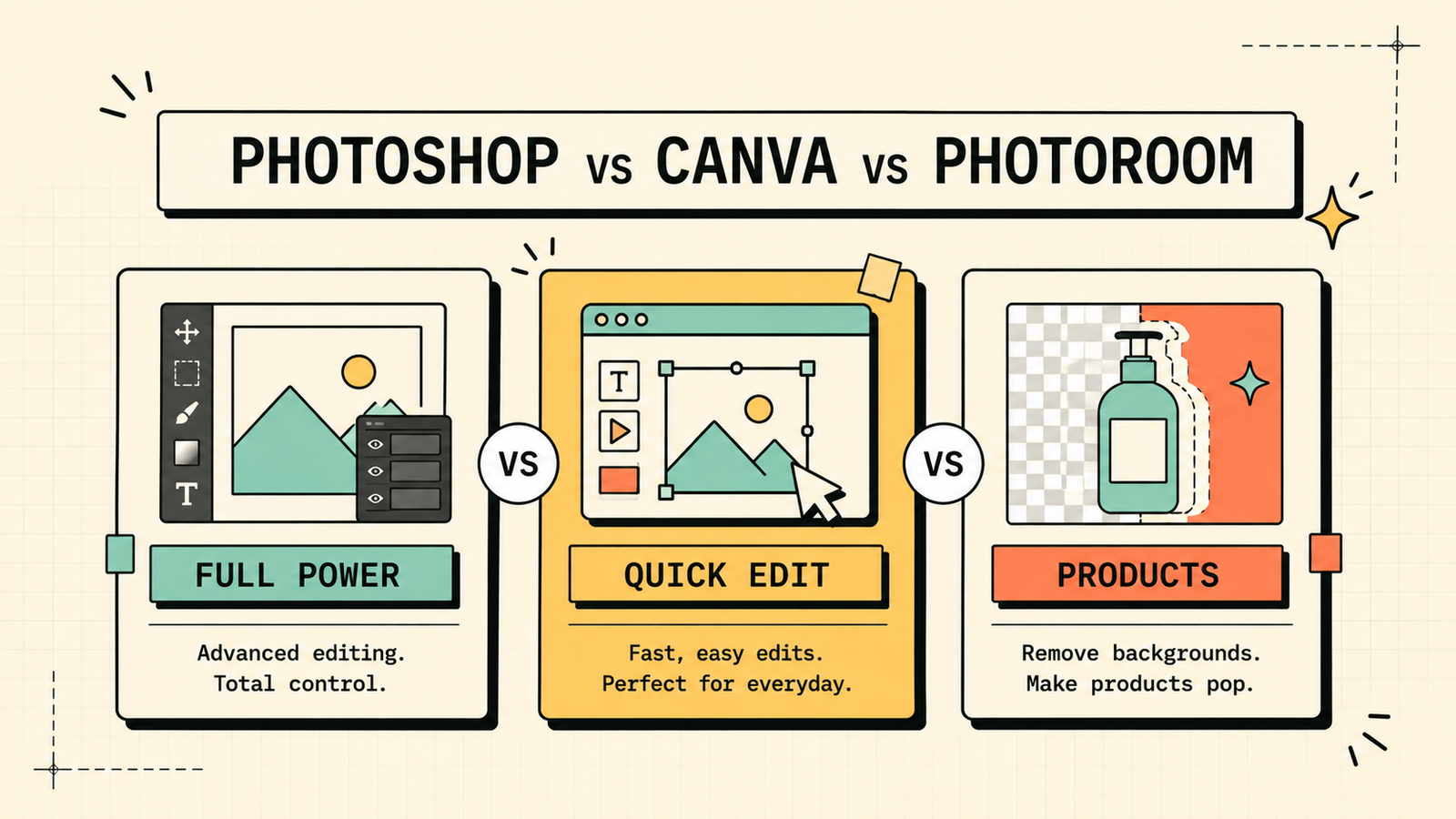
Photoshop remains the most powerful photo editor, and its AI features (Generative Fill, Generative Expand, Remove tool) have made it dramatically faster. You can select an area, describe what you want, and the AI fills it in seamlessly. It handles complex edits, compositing, retouching, and anything creative. Paid subscription with a trial. Best for professional-grade editing where you need full creative control and AI-powered speed.
Canva
Canva's photo editing features include AI background removal, magic eraser (remove objects), magic expand, and enhancement tools, all inside the design platform most people already use. The interface is simple and requires no design skills. Free plan available, Pro adds more AI features. Best for quick edits inside a tool you already use for design, social posts, and marketing.
Photoroom
Photoroom specialises in product and ecommerce photos. It removes backgrounds instantly, places products on clean or styled backgrounds, and handles batch editing for product catalogues. It is the fastest way to go from a phone photo of a product to a professional-looking listing image. Free plan with watermark, paid for full quality. Best for ecommerce product photos and anyone who needs clean product shots at scale.
Fotor
Fotor is a browser-based editor with strong AI enhancement, background removal, object erasure, and one-click improvements. It sits between Canva's simplicity and Photoshop's depth. Free plan with limits, paid for full features. Best for general photo editing in the browser without installing software.
Pixlr
Pixlr offers AI-powered editing in the browser with background removal, object erasure, filters, and adjustments. It has a Photoshop-like interface for users who want more control than Canva but do not want to pay for Adobe. Free plan available. Best for users who want a more advanced editor in the browser at no cost.
Remini
Remini focuses on AI photo enhancement and upscaling. It takes low-quality, blurry, or old photos and makes them sharp and clear. It is especially useful for restoring old photos, improving phone-camera shots, and enhancing headshots. Free with limits, paid for more. Best for enhancing and restoring low-quality or old photos.
Which AI Is Best for Video Creation?
AI photo editing tools compared
| Tool | Best for | Background removal | Object erasure | Enhancement | Free plan |
|---|---|---|---|---|---|
| Photoshop (Gen Fill) | Professional creative editing | Yes | Yes (advanced) | Yes | Trial only |
| Canva | Quick edits inside a design tool | Yes | Yes | Yes | Yes |
| Photoroom | Product and ecommerce photos | Yes (specialised) | Yes | Yes | Yes (watermark) |
| Fotor | General browser-based editing | Yes | Yes | Yes | Yes (limited) |
| Pixlr | Advanced browser editor | Yes | Yes | Yes | Yes |
| Remini | Enhancing and restoring photos | No | No | Yes (specialised) | Yes (limited) |
Photoshop AI vs Canva vs Photoroom: which is best?
Each wins at a different job. Pick Photoshop when you need full creative control and the highest-quality results, especially for complex edits, compositing, and professional retouching. It is the most powerful but also the most expensive and complex. Pick Canva when you need quick, simple edits inside a tool you already use for design, without learning anything new. Pick Photoroom when your main job is product photos, since it handles background removal and product staging faster and more cleanly than general editors. For most small businesses, Canva covers everyday edits, and Photoroom handles product shots. Photoshop is the upgrade when quality and creative control justify the cost.
Best free AI for photo editing
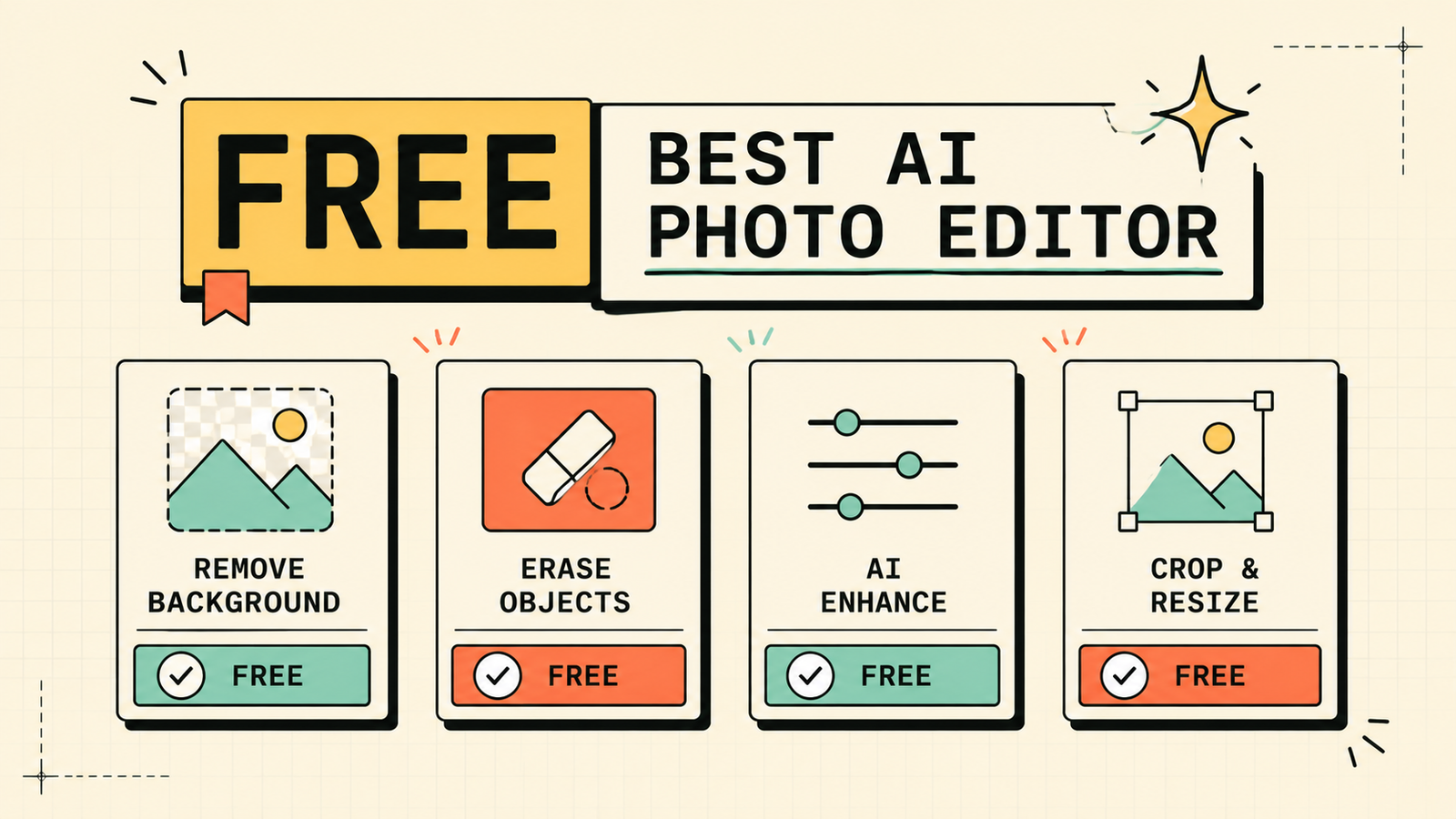
If you are paying nothing, you have solid options. Canva free handles background removal, object erasure, and basic enhancements. Pixlr free offers a more advanced browser editor with AI features. Fotor free covers one-click improvements and basic edits. Remini free enhances and upscales a limited number of photos. Between these four, you can remove backgrounds, erase objects, enhance quality, and edit photos at zero cost. Photoroom free works but adds a watermark. Paid tools mainly add batch processing, higher quality, and watermark-free output.
We'll show you exactly which AI photo tools fit your workflow and save you the most time.
Get a clear, practical plan to edit photos like a pro without the learning curve or the software cost.
Best AI to remove backgrounds
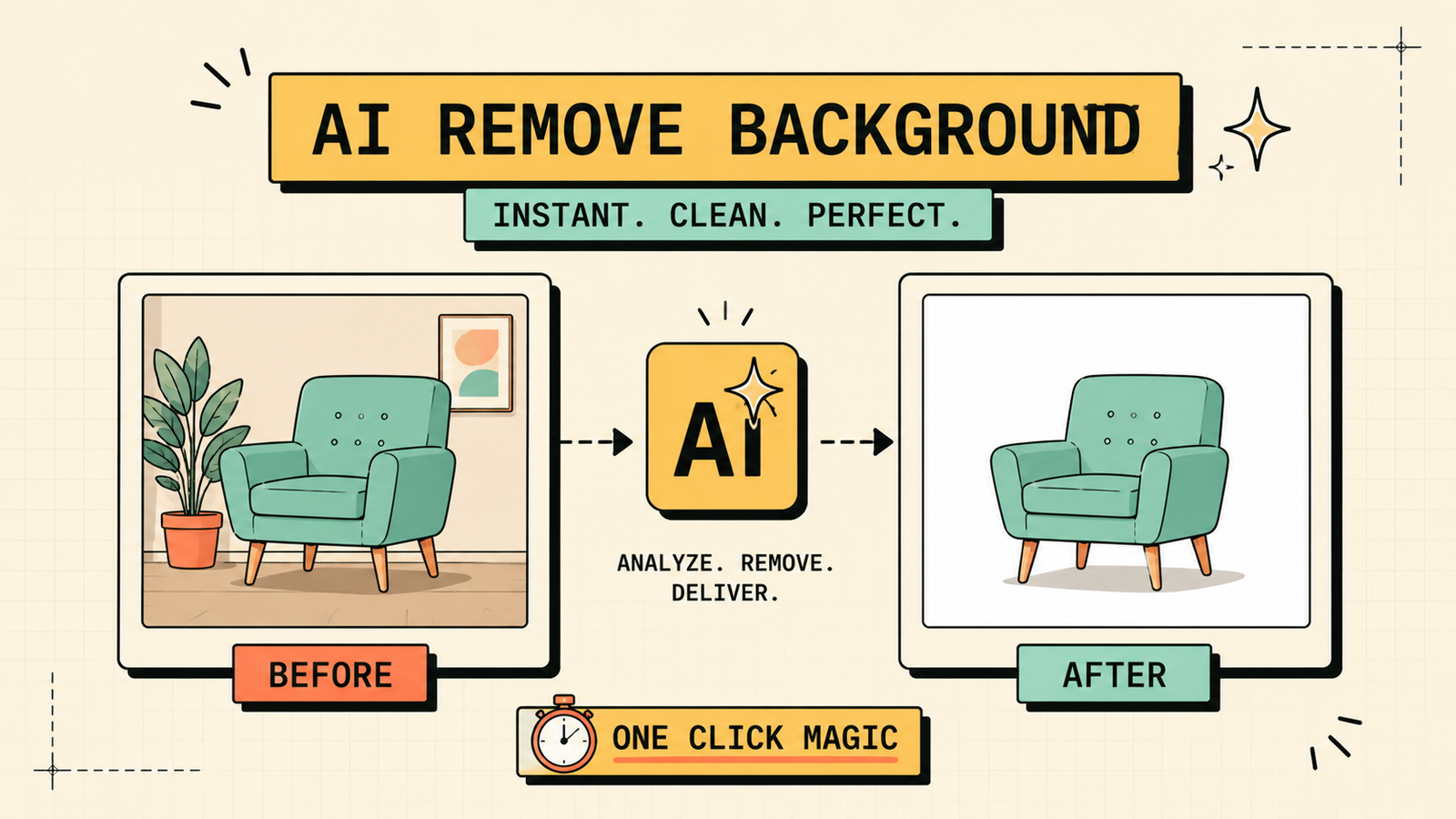
Background removal is the single most requested AI photo edit, and several tools do it well. Photoroom is the fastest and cleanest for product photos, removing backgrounds and placing products on styled or plain settings in seconds. Canva's background remover works well for general photos and is included in Pro. Photoshop's AI handles complex edges (hair, transparency) better than any other tool. For a quick, free background removal, remove.bg (a dedicated web tool) handles simple photos cleanly. Match the tool to the complexity: simple product shots go to Photoroom, complex edges to Photoshop.
Best AI for product and ecommerce photos
Ecommerce product photos have specific needs: clean backgrounds, consistent lighting, and the ability to process many images. Photoroom is purpose-built for this and is the best pick. It removes backgrounds, places products on professional-looking settings, handles batch editing, and exports in the sizes marketplaces require. Canva handles individual product edits well. Photoshop's Generative Fill can create realistic product scenes. For a Shopify or Amazon seller processing dozens of product images, Photoroom is the clear winner for speed and consistency.
Best AI for headshots and portraits
For making a headshot look professional without a studio, Remini enhances and sharpens phone-camera portraits. Photoshop's AI retouching handles skin, lighting, and background with the most control. Canva's enhancement and background tools produce decent headshots quickly. For LinkedIn or website headshots on a budget, take the best photo you can with your phone, enhance it with Remini, and clean up the background with Canva or Photoroom. The result is not studio quality, but it is professional enough for most business uses.
Common mistakes with AI photo editing
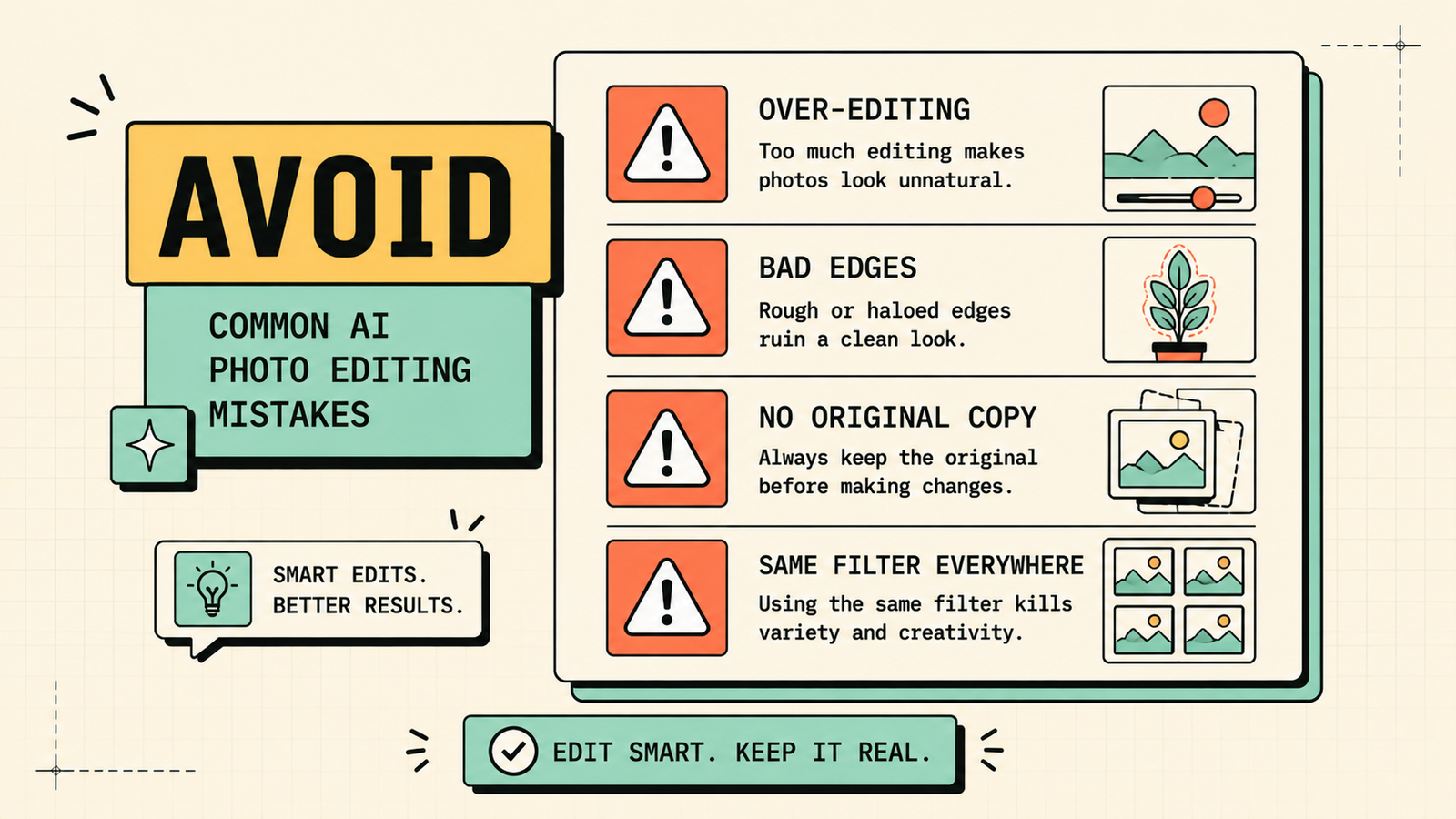
A few habits produce the worst results. Over-editing with AI enhancement makes photos look unnatural and plastic. Not checking edges after background removal leaves visible artefacts. Using AI to fix a fundamentally bad photo when retaking it would be faster and better. Applying the same filter or enhancement to every photo regardless of context makes your visual style look generic. And not keeping an original copy means you cannot undo an edit you regret later. Use AI to speed up real edits, not to paper over problems that a better source photo would solve.
AI Tools for Marketing
The AI photo editing workflow that saves the most time
Here is the workflow that turns AI photo editing from a gadget into a genuine time-saver. Start with the best source photo you can get, since AI enhances good photos far better than it rescues bad ones. For product photos, shoot on a plain surface with natural light, then run the batch through Photoroom for background removal and consistent staging. For social and marketing graphics, edit in Canva where you can go from photo edit to finished design without switching tools. For headshots and portraits, enhance with Remini first, then clean up the background in Canva or Photoroom. For complex creative edits, use Photoshop's Generative Fill to add, remove, or replace elements with a text prompt. And always keep your original file, since you cannot undo an AI edit after saving over the source. This workflow handles 90% of a small brand's photo editing without a designer, and the total cost can be zero on free plans.
LetMeRank
Best AI for batch photo editing
If you process many photos at once, which is common for ecommerce, catalogues, and social media scheduling, you need a tool that handles batches rather than one image at a time. Photoroom is the strongest for batch product photos: upload dozens, remove backgrounds, apply consistent settings, and export in the sizes your platforms need. Canva Pro handles batch resizing and brand template application. Pixlr supports batch filters and adjustments. For individual creative edits, batch tools do not apply, but for repetitive processing at scale, they save hours every week compared to editing one photo at a time.
The bottom line
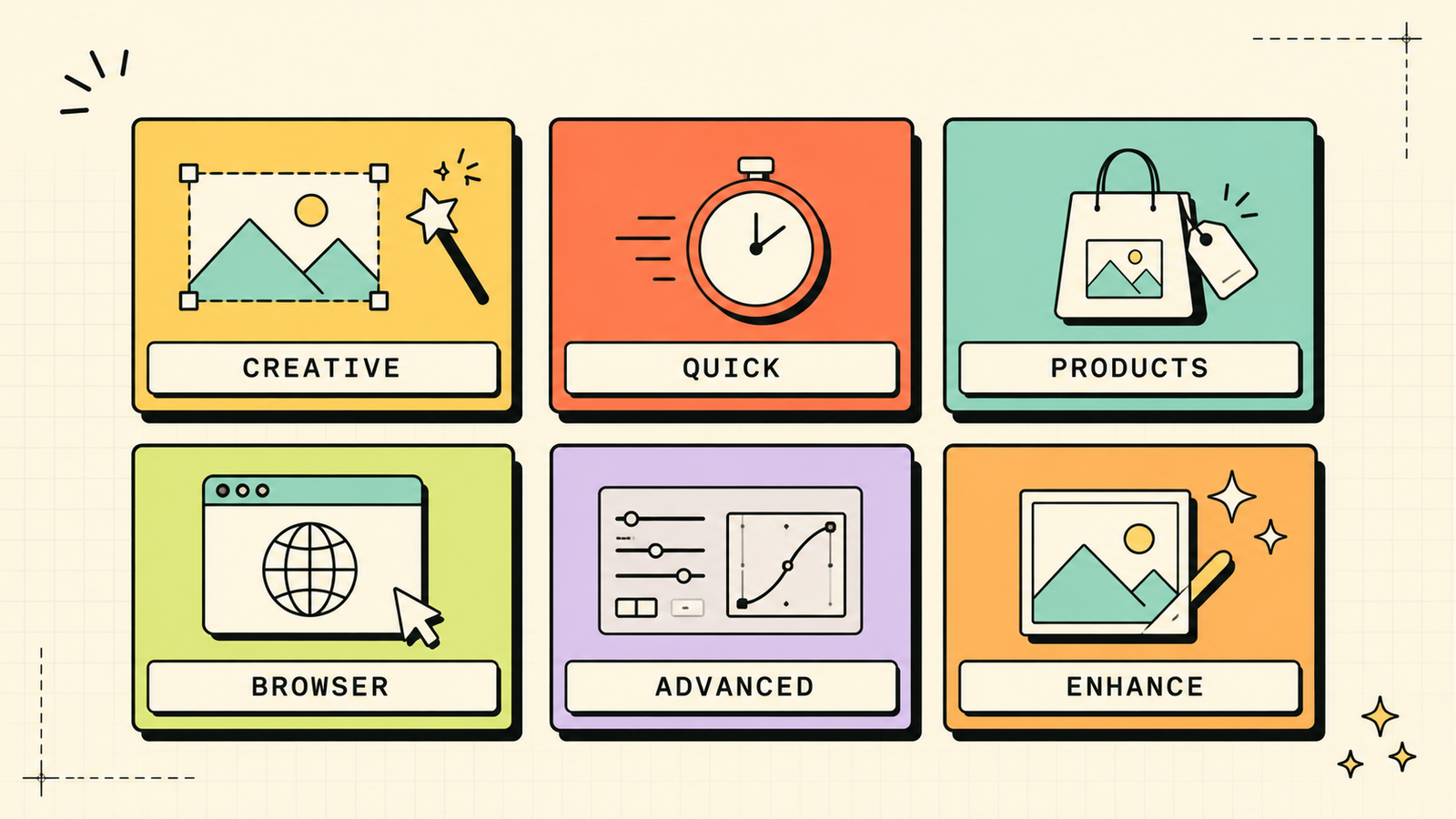
The best AI for photo editing depends on what you edit. Photoshop for full creative power, Canva for quick everyday edits, Photoroom for product photos, Fotor and Pixlr for browser-based editing, and Remini for enhancing low-quality images. Start free with Canva or Pixlr, add Photoroom if you sell products, and upgrade to Photoshop when quality and control justify it. AI makes every edit faster, but starting with a good photo still matters more than any tool. Shoot the best source you can, let AI handle the rest, and you get results a non-designer could not have produced a few years ago.
If you found this useful, LetMeRank publishes practical guides on AI tools, content, and organic growth for founders and teams.