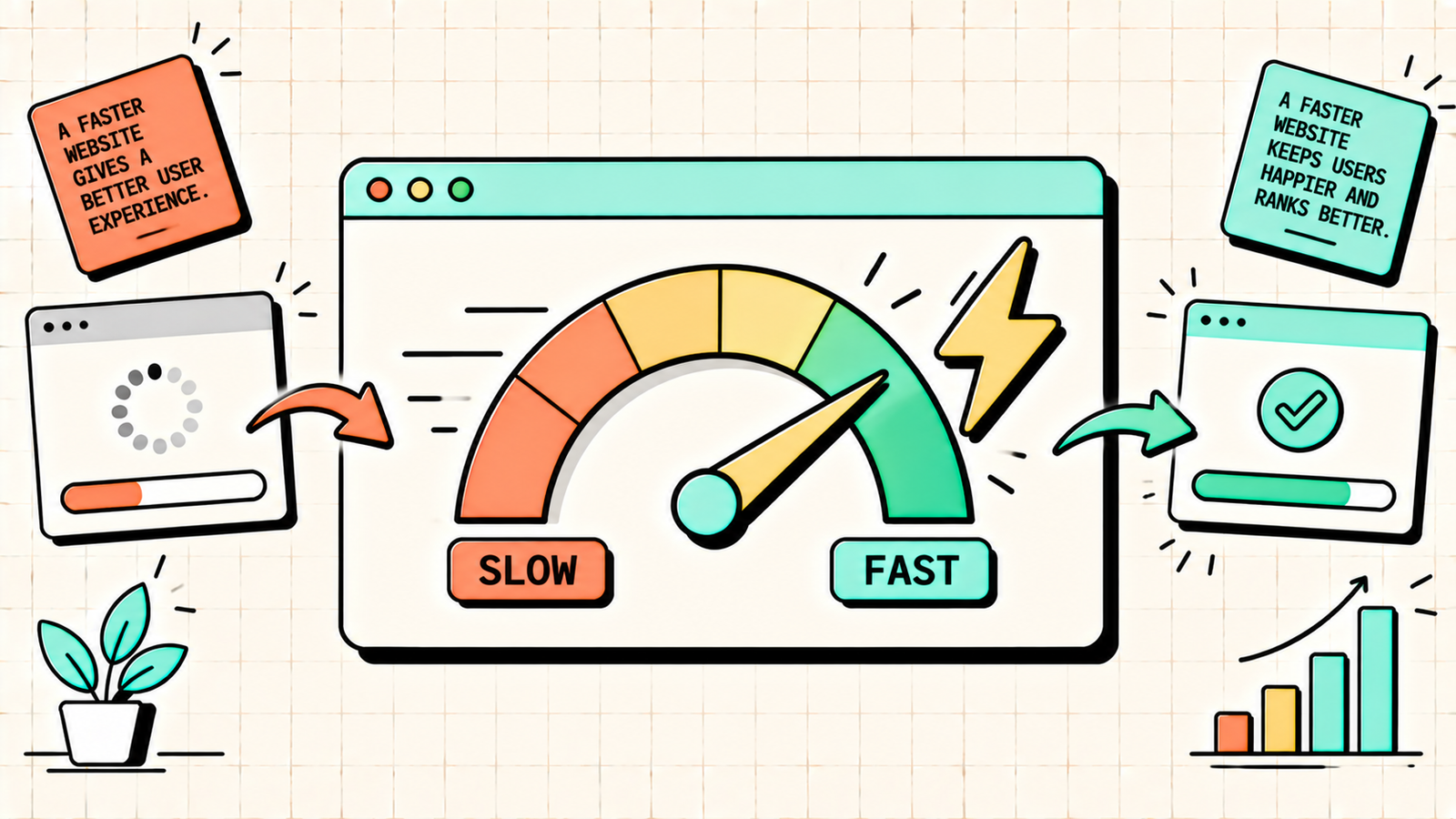
Your website takes five seconds to load. By second three, half your visitors have already left. They did not read your headline, they did not see your product, and they definitely did not buy anything. They just bounced, and Google noticed. Website speed is not a nice-to-have. It is a ranking factor, a conversion factor, and a user experience factor all at once.
A slow site hurts your search rankings, kills your conversion rate, and frustrates every visitor who lands on it. This guide covers why speed matters, how to measure it, and the specific fixes that make the biggest difference, ordered from quickest wins to deeper optimisations.
Why website speed matters
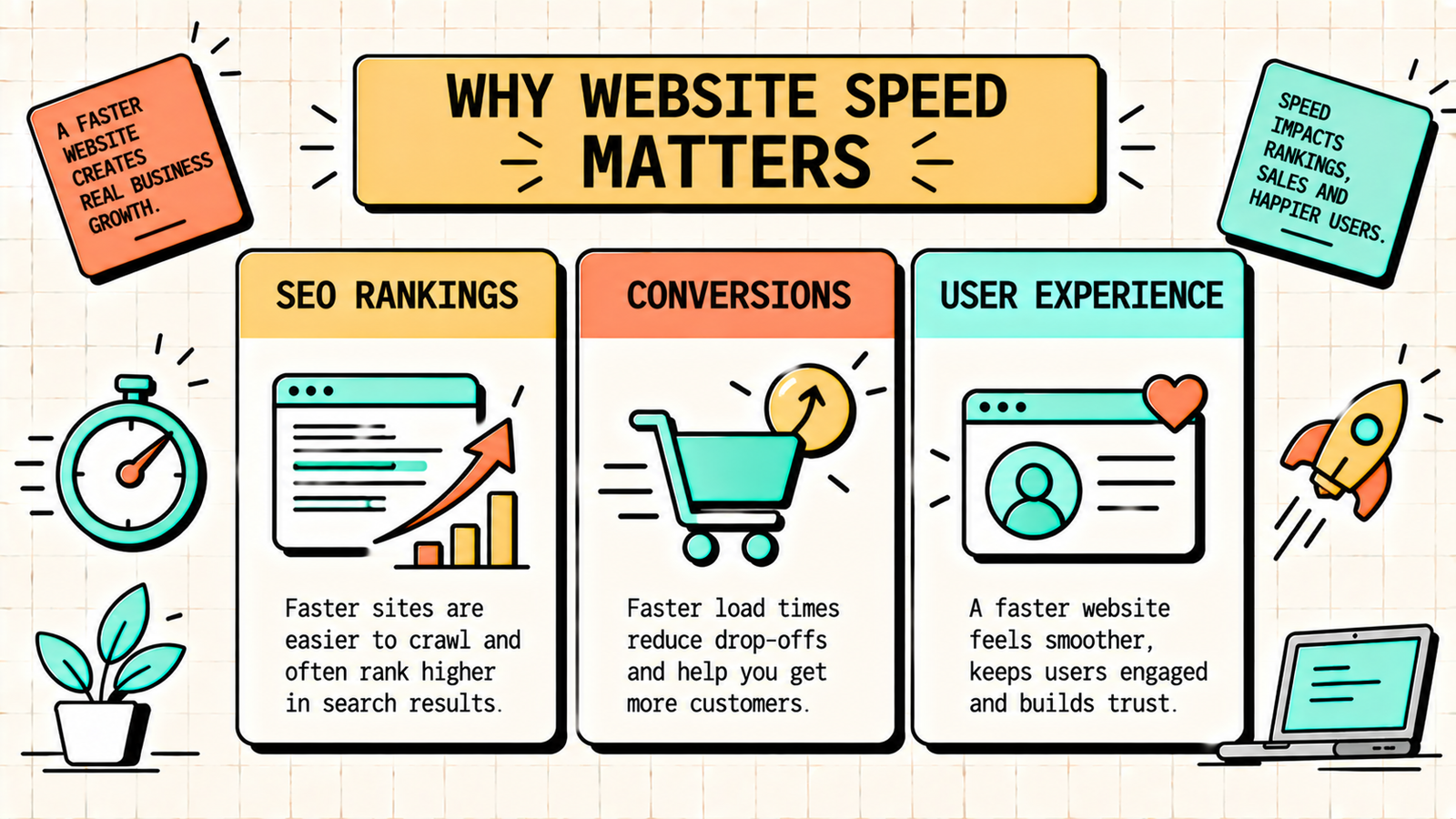
Speed affects three things that determine your business results.
SEO rankings. Google uses Core Web Vitals as ranking signals. Slow pages score poorly on Largest Contentful Paint (LCP), which directly impacts your ability to rank. Faster pages have an edge in competitive search results.
Conversion rates. Every additional second of load time drops your conversion rate measurably. Studies consistently show that pages loading in under two seconds convert at significantly higher rates than pages loading in four or five. For ecommerce, a one-second delay can cost you a meaningful percentage of sales.
User experience. Visitors form their first impression of your site in milliseconds. A slow site signals low quality before anyone reads a word. A fast site feels professional and trustworthy. Speed is the first experience every visitor has, and it sets the tone for everything that follows.
How to measure your website speed
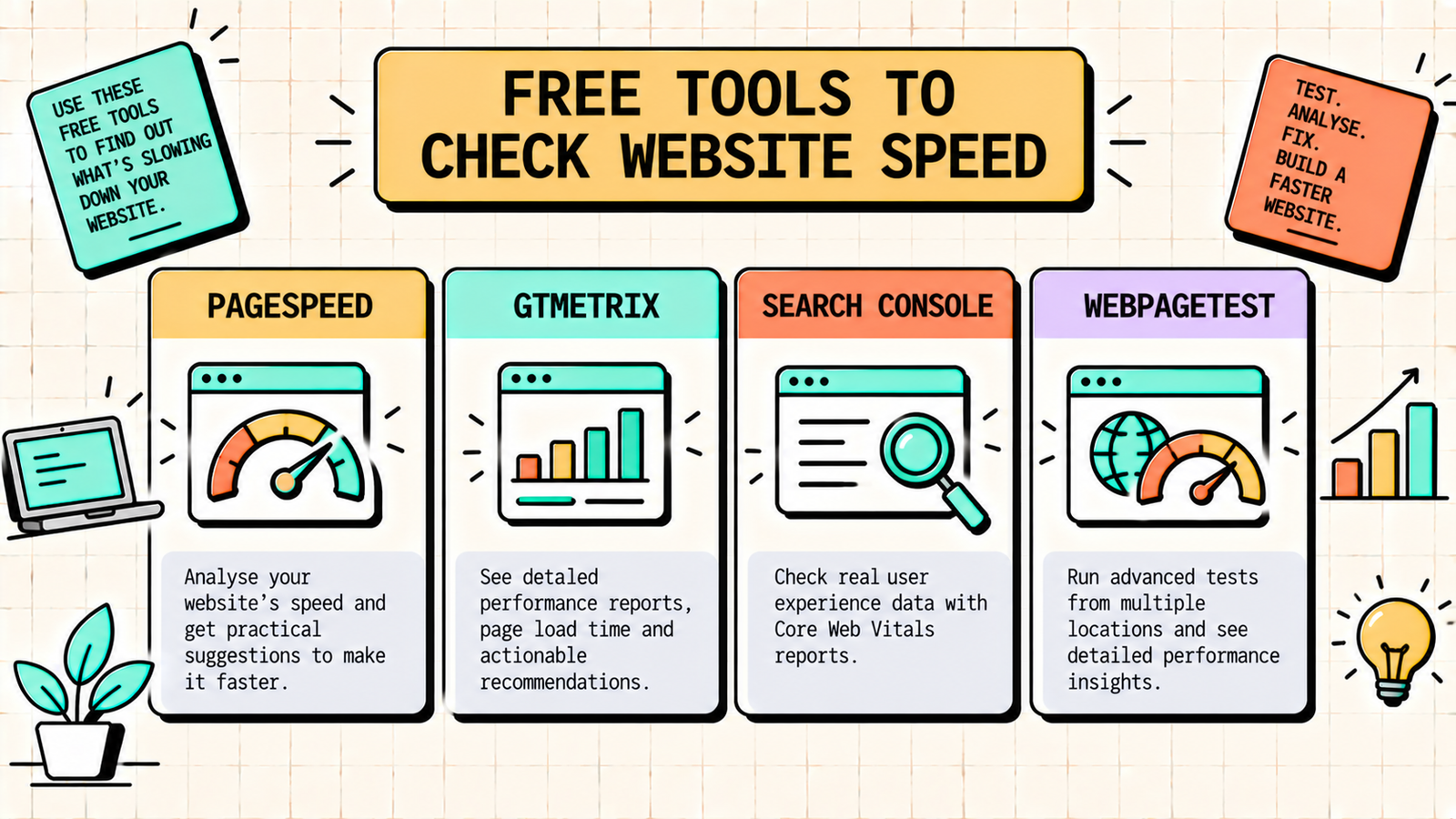
Before fixing anything, measure where you stand. Use these free tools.
| Tool | What it measures | Best for |
|---|---|---|
| Google PageSpeed Insights | Core Web Vitals, performance score, specific recommendations | Primary speed check |
| GTmetrix | Waterfall analysis, load time breakdown, performance grades | Detailed diagnostics |
| Google Search Console | Core Web Vitals across your whole site (mobile and desktop) | Site-wide health check |
| WebPageTest | Advanced waterfall, connection speeds, multi-location testing | Deep technical analysis |
Start with PageSpeed Insights. Enter your URL and look at two things: your performance score (aim for 90 or above) and your Core Web Vitals (LCP under 2.5 seconds, INP under 200ms, CLS under 0.1). These are the numbers Google uses for ranking, so they are the numbers that matter most.
The speed fixes that make the biggest difference
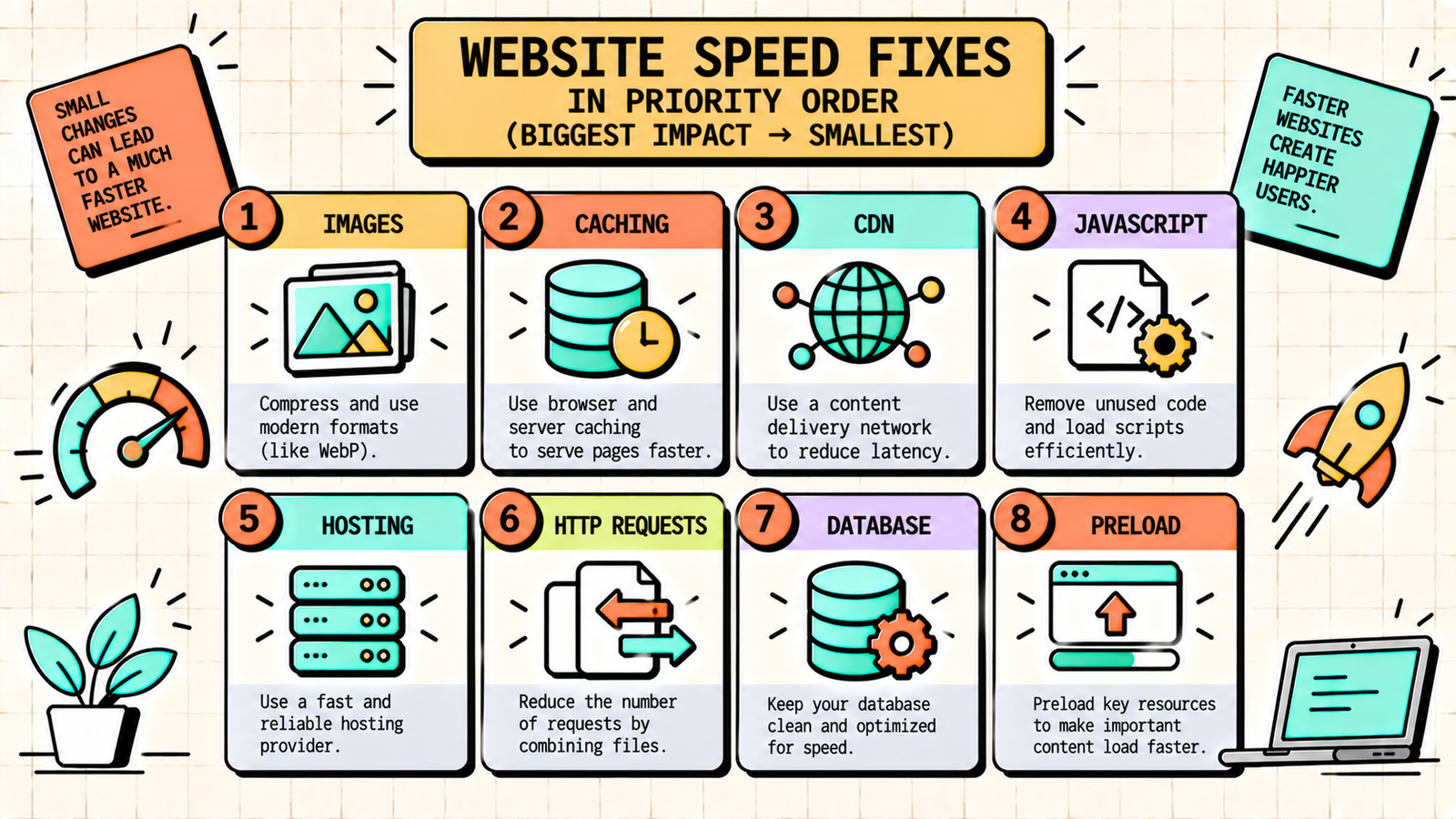
Here are the optimisations ordered from biggest impact to smallest, so you fix the most impactful issues first.
1. Optimise and compress images
Images are almost always the single largest contributor to slow page loads. A single uncompressed hero image can be 3 to 5 MB, which alone takes seconds to load on a typical connection.
What to do: Convert images to WebP format, which is 25 to 35 percent smaller than JPEG and PNG at the same quality. Resize images to the actual display dimensions (do not upload a 4000px image that displays at 800px). Compress images using a tool like ShortPixel, Imagify, or TinyPNG. Implement lazy loading so images below the fold only load when the user scrolls to them. And use responsive image attributes so mobile devices get smaller files. This single fix often cuts page weight by 50 percent or more.
2. Enable caching
Caching stores copies of your pages and assets so returning visitors (and subsequent page loads) do not need to download everything again. Browser caching tells the visitor's browser to store static files locally. Server caching (page caching) stores the full rendered page so the server does not rebuild it for every request.
What to do on WordPress: Install a caching plugin (LiteSpeed Cache if on LiteSpeed hosting, WP Super Cache or W3 Total Cache otherwise). Enable page caching and browser caching. Most plugins handle this with a few clicks.
3. Use a CDN (Content Delivery Network)
A CDN stores copies of your site on servers around the world, so visitors load the site from the server closest to them rather than from one location that might be thousands of kilometres away.
What to do: Enable Cloudflare (free plan is excellent), which handles CDN, basic security, and some performance optimisation in one package. Most hosting providers also offer CDN integration. For a site serving visitors across India and internationally, a CDN noticeably reduces load times for distant visitors.
4. Minimise and defer JavaScript and CSS
Excess JavaScript is the second biggest speed killer after images. Scripts that load in the head of your page block rendering, meaning the browser waits for them before showing anything to the visitor.
What to do: Defer non-critical JavaScript so it loads after the page renders. Remove JavaScript you do not actually use (tracking scripts, social widgets, and plugin scripts you no longer need). Minify CSS and JavaScript files to reduce their size. On WordPress, plugins like Autoptimize or Perfmatters handle this. Be careful: deferring critical scripts can break functionality, so test after each change.
5. Choose better hosting
Your hosting is the foundation of your site's speed. A cheap shared hosting plan that puts your site on an overloaded server will be slow no matter how well you optimise everything else.
What to do: If you are on shared hosting and your site is slow despite optimisation, upgrade to managed WordPress hosting (Cloudways, Hostinger VPS, DigitalOcean) or a hosting provider that uses LiteSpeed servers with built-in caching. The cost difference is often small (a few hundred rupees per month more) and the speed improvement is dramatic.
6. Reduce HTTP requests
Every file your page loads (images, scripts, stylesheets, fonts) is a separate HTTP request. More requests means more time waiting for files to arrive.
What to do: Combine CSS and JavaScript files where possible. Remove plugins and widgets you do not use, since each one adds scripts and styles. Use system fonts or limit custom fonts to one or two weights rather than loading an entire font family. And inline critical CSS so the browser can render the page before all stylesheets arrive.
7. Optimise your database (WordPress)
Over time, WordPress databases accumulate overhead: post revisions, spam comments, transients, and orphaned data that slow down queries.
What to do: Use a plugin like WP-Optimize to clean up post revisions (keep the last two or three), remove spam and trashed comments, optimise database tables, and clear expired transients. Run this monthly. The impact is usually modest but compounds with site age and size.
8. Implement preloading and prefetching
Preloading tells the browser to start downloading critical resources (fonts, hero images, key scripts) before it would normally discover them in the code. Prefetching tells the browser to prepare resources for the next page the user is likely to visit.
What to do: Add preload hints for your most important above-the-fold resources (hero image, primary font, critical CSS). Add prefetch hints for common next pages (like product pages from a collection page). This shaves fractions of seconds that add up to a noticeably snappier experience.
Core Web Vitals: what they are and how to fix them
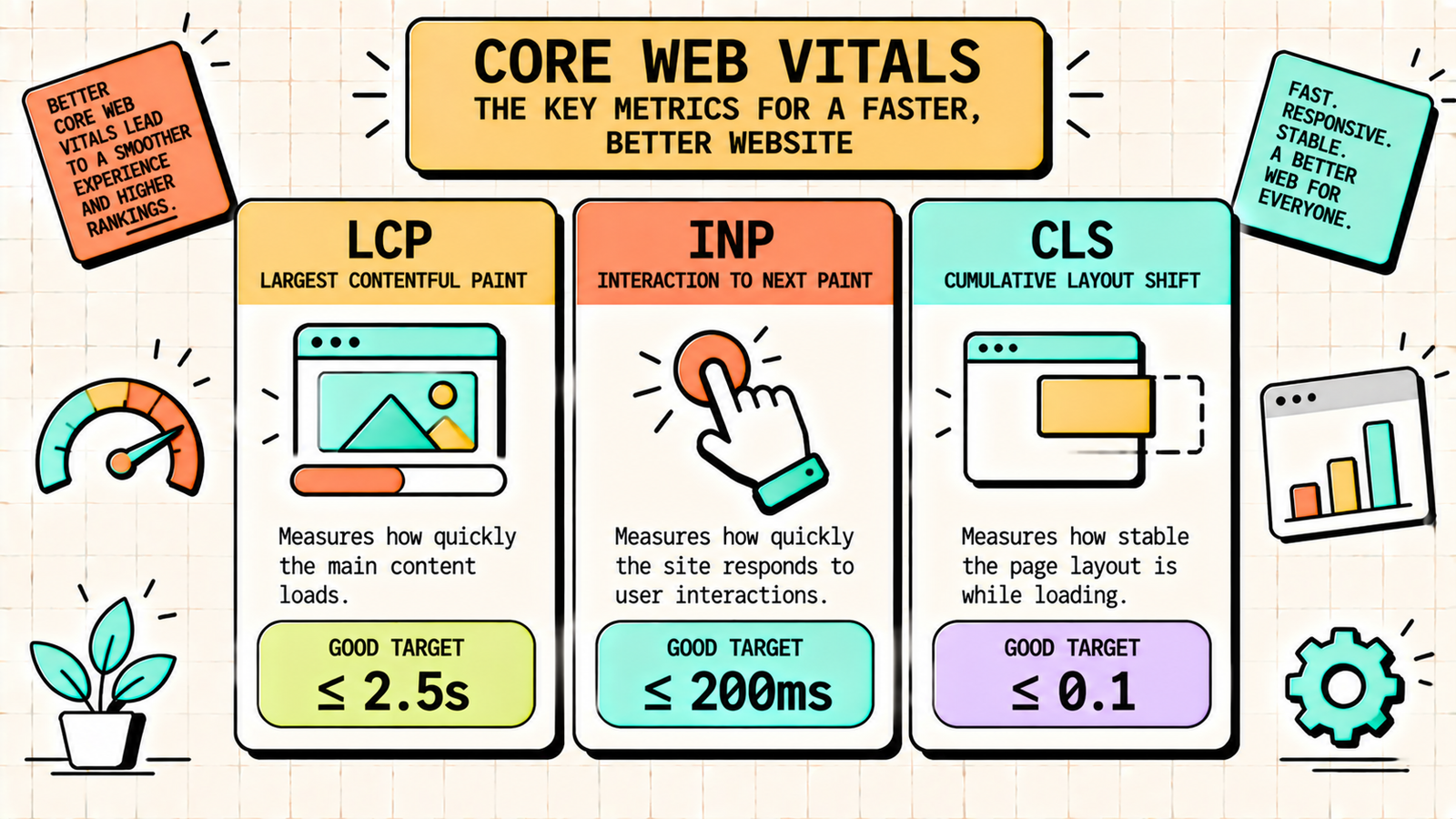
Core Web Vitals are the three specific metrics Google uses as ranking signals.
LCP (Largest Contentful Paint)
What it measures: How long the largest visible element (usually a hero image or heading) takes to load. Target: under 2.5 seconds.
How to fix: Optimise and preload your hero image, use a CDN, improve server response time (better hosting), and defer non-critical scripts that block rendering.
INP (Interaction to Next Paint)
What it measures: How quickly the page responds when a user clicks, taps, or types. Target: under 200 milliseconds.
How to fix: Reduce and defer JavaScript, break up long tasks, and remove heavy third-party scripts that block the main thread.
CLS (Cumulative Layout Shift)
What it measures: How much the page layout shifts unexpectedly as it loads (elements jumping around). Target: under 0.1.
How to fix: Set explicit width and height on images and videos, preload fonts to prevent text shift, and avoid inserting dynamic content above existing content (like late-loading ad banners pushing content down).
We'll find exactly what's slowing your site down and how to fix it.
Get a clear, data-backed plan to improve Core Web Vitals, speed up your pages, and turn speed into rankings and conversions.
WordPress-specific speed optimisation
Since most sites run WordPress, here are platform-specific tips. Use a lightweight theme (GeneratePress, Astra, Kadence) rather than a heavy multipurpose theme. Limit plugins to the ones you actually use, since every plugin adds code. Use LiteSpeed Cache if your hosting supports it, which is the fastest caching solution for WordPress. Disable Elementor's default Google Fonts loading if you use system fonts. Serve images through a CDN or an image optimisation plugin that converts to WebP automatically. And keep WordPress, themes, and plugins updated, since updates often include performance improvements.
How to check speed after each fix
After every change, re-test with PageSpeed Insights and GTmetrix to measure the impact. Some fixes produce dramatic improvements (image optimisation, caching) while others are incremental (database cleanup, preloading). Keep a log of what you changed and what score it produced, so you know which fixes moved the needle and which were not worth the effort.
Best CMS for SEO: WordPress, Shopify, Webflow and More Compared
Common website speed mistakes
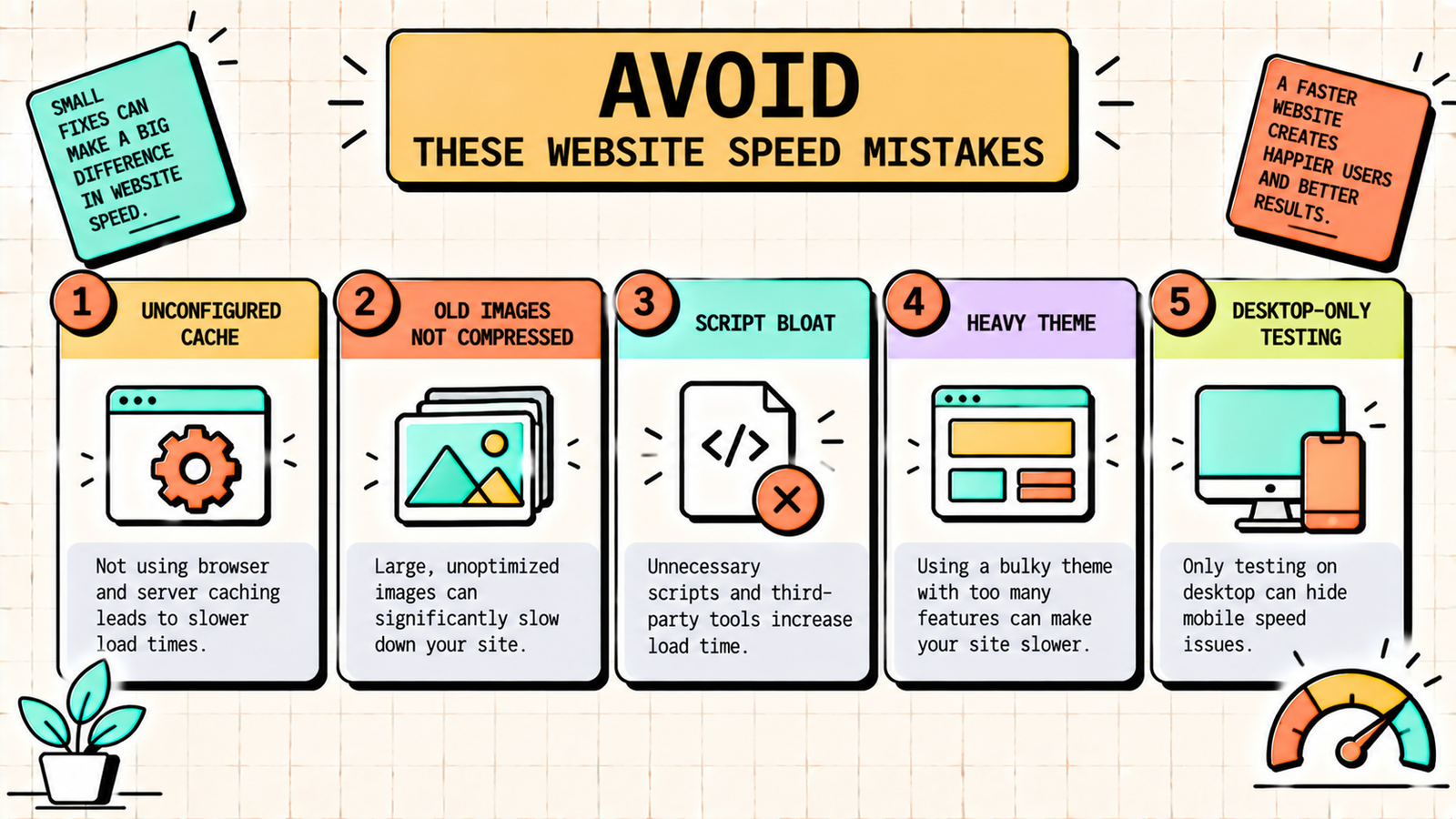
A few patterns keep sites slow despite effort. Installing a caching plugin but not configuring it means caching is not actually working. Optimising images on new uploads but not retroactively compressing the hundreds of existing images leaves the biggest culprits untouched. Adding tracking scripts, chat widgets, social embeds, and marketing pixels without considering their speed cost turns a fast site slow one script at a time. Using a heavy, feature-bloated theme because it looks good in the demo trades speed for aesthetics. And testing speed only on desktop while most visitors are on slower mobile connections gives you a false sense of performance.
How to Write Meta Descriptions That Get Clicks (With Examples)
The bottom line
Website speed is a ranking factor, a conversion factor, and the first impression every visitor gets. Measure with PageSpeed Insights, then fix in order of impact: images first, then caching, CDN, JavaScript, hosting, HTTP requests, database, and preloading. Aim for an LCP under 2.5 seconds, an INP under 200ms, and a CLS under 0.1. Test after each change and maintain speed as an ongoing practice, not a one-time project. A fast site ranks better, converts better, and keeps visitors happier than any amount of content or advertising on a slow one.
If you want experts to audit and optimise your site speed alongside your SEO, LetMeRank handles technical SEO including speed optimisation, starting with a free audit.